> For the complete documentation index, see [llms.txt](https://docs.tricloudnexus.io/llms.txt). Markdown versions of documentation pages are available by appending `.md` to page URLs; this page is available as [Markdown](https://docs.tricloudnexus.io/management-portal/oee/sites/site-structure.md).

# Site Structure

Create Sites, Areas and Equipment, and reorganize the tree using drag-and-drop.

The OEE site structure has three node types — **Site → Area → Equipment** — and a small set of rules about which can be a parent of which. This page covers how to create each level and how to move nodes around afterwards.

<figure><img src="https://570593659-files.gitbook.io/~/files/v0/b/gitbook-x-prod.appspot.com/o/spaces%2FYMGRODsc2QD3N3wmfwTl%2Fuploads%2Fgit-blob-aded61dc838c273b0fdc94cd44c30143dca6bd8c%2Foee-sites-tree.png?alt=media" alt=""><figcaption><p>OEE Sites tree — a Site (Mintastic Fredericia) expanded to show its Areas and Equipment; other Sites appear collapsed below</p></figcaption></figure>

***

## Node types and rules

| Node          | Allowed parent     | Allowed children |
| ------------- | ------------------ | ---------------- |
| **Site**      | (top level — none) | Areas            |
| **Area**      | Site               | Equipment        |
| **Equipment** | Area               | (leaf — none)    |

Sites cannot be nested under other Sites; Equipment cannot live directly under a Site without an Area in between. The drag-and-drop logic enforces this — drops on illegal targets are silently rejected.

***

## Create a Site

1. On the OEE Sites page, choose **+ New Site** above the tree.
2. Fill in the dialog. The fields are the same as on the [Site Settings](/management-portal/oee/sites/site-settings.md) tab — at minimum:
   * **Site name** (required)
   * **Time Zone** (required, defaults to `Europe/Berlin`)
   * **Data Store** (recommended — without it the Site cannot calculate OEE; only data stores with the **OEE** purpose appear in the dropdown — see [Prerequisites](/management-portal/oee/prerequisites.md))
3. Optionally drop a marker on the map by clicking the desired location, or type Latitude / Longitude directly.
4. Choose **Ok**.

The new Site appears in the tree and is selected so you can continue configuring it.

***

## Add an Area

1. Select the Site you want to add the Area to.
2. Open the kebab (`⋮`) menu on the Site node, or right-click it, and choose **Add area**.
3. Enter a name in the prompt and confirm.

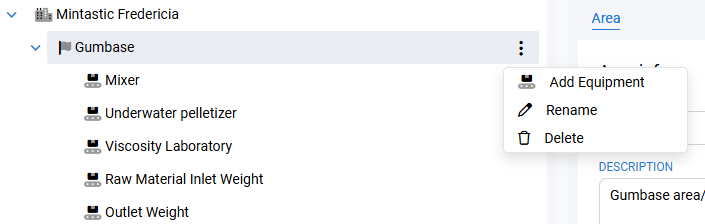
<figure><img src="https://570593659-files.gitbook.io/~/files/v0/b/gitbook-x-prod.appspot.com/o/spaces%2FYMGRODsc2QD3N3wmfwTl%2Fuploads%2Fgit-blob-0130e14b61d9e26cba5666d6af1dbece7499bc1d%2Foee-area-context-menu.png?alt=media" alt=""><figcaption><p>Area context menu — Add Equipment, Rename, and Delete actions on hover or right-click</p></figcaption></figure>

Areas are pure containers — they only have a name and description. See [Areas](/management-portal/oee/areas.md) for details.

***

## Add Equipment

1. Select the Area you want to add the Equipment to.
2. Open the kebab menu on the Area, or right-click it, and choose **Add Equipment**.
3. Enter a name in the prompt and confirm.

<figure><img src="https://570593659-files.gitbook.io/~/files/v0/b/gitbook-x-prod.appspot.com/o/spaces%2FYMGRODsc2QD3N3wmfwTl%2Fuploads%2Fgit-blob-a26d7b7bba761977dabde9266f7beb073de126ae%2Foee-equipment-context-menu.png?alt=media" alt=""><figcaption><p>Equipment context menu — Rename and Delete actions on the leaf node</p></figcaption></figure>

The new Equipment is created with OEE disabled. Open the [Equipment](/management-portal/oee/equipment.md) tab to enable it and configure tags, shifts, stops, and so on.

***

## Rename a node

1. Select the node.
2. Open the kebab / context menu and choose **Rename**.
3. Edit the name and confirm.

Renaming has no side-effects beyond the display name — IDs do not change, and references from elsewhere in the platform still resolve.

***

## Reorganize the tree (drag-and-drop)

Re-parenting Areas or Equipment is gated by the **reorder toggle** so you don’t move things by accident:

1. Click the lock / arrows toggle next to **+ New Site**. The tree icon switches from a lock to up/down arrows.
2. Drag the node onto a new parent:
   * Drop **Equipment** onto an Area to re-parent it. Dropping it onto another Equipment moves it under that Equipment’s Area.
   * Drop an **Area** onto a Site to re-parent it. Dropping it onto an Area or Equipment moves it under that node’s Site.
   * **Sites cannot be moved** — drag is cancelled at the start.
3. When you’re done, click the toggle again to lock the tree.

When you move a node between Sites, the entire subtree moves with it.

{% hint style="info" %}
The tree is saved after each successful drop — there’s no separate "Save reorder" action.
{% endhint %}

***

## Delete a node

1. Select the node.
2. Open the kebab / context menu and choose **Delete**.
3. Confirm in the dialog.

Deleting a Site removes the Site and everything under it. Deleting an Area removes the Area and any Equipment under it.

{% hint style="warning" %}
**Enabled equipment blocks deletion.** If the node you’re deleting (or any descendant) has OEE enabled, the operation is cancelled and an error lists the offending equipment names. Open each one, set **OEE Enabled** to off on the Equipment tab, save, and try again.
{% endhint %}