> For the complete documentation index, see [llms.txt](https://docs.tricloudnexus.io/llms.txt). Markdown versions of documentation pages are available by appending `.md` to page URLs; this page is available as [Markdown](https://docs.tricloudnexus.io/management-portal/oee/sites/site-shifts.md).

# Site Shifts

Define one or more shift calendars per Site. Equipment under the Site picks one calendar to determine when OEE is calculated.

A **Shift Calendar** is a recurring schedule that says when a piece of equipment is *expected* to run. The OEE engine still calculates and stores facts continuously regardless of whether a shift is assigned — the shift is recorded as metadata on each fact so that **downstream queries and dashboards can filter or aggregate by shift**. If no shift calendar is assigned, OEE is still calculated; you just can’t slice the result by shift.

Shift Calendars are defined at the **Site** level and assigned to individual equipment from the [Equipment Shift Assignment](/management-portal/oee/equipment/shift-assignment.md) tab. A Site can hold many calendars (e.g. a 3-shift `Production` calendar, a single-shift `Office` calendar, a 24/7 `Continuous` calendar) and each equipment selects exactly one.

***

## The Shifts tab

The tab is a two-pane layout:

* **Shift Calendars** (left) — a small grid listing every calendar on the Site, with the count of **distinct shift names** in each (see [Shifts are grouped by name](#shifts-are-grouped-by-name) below).
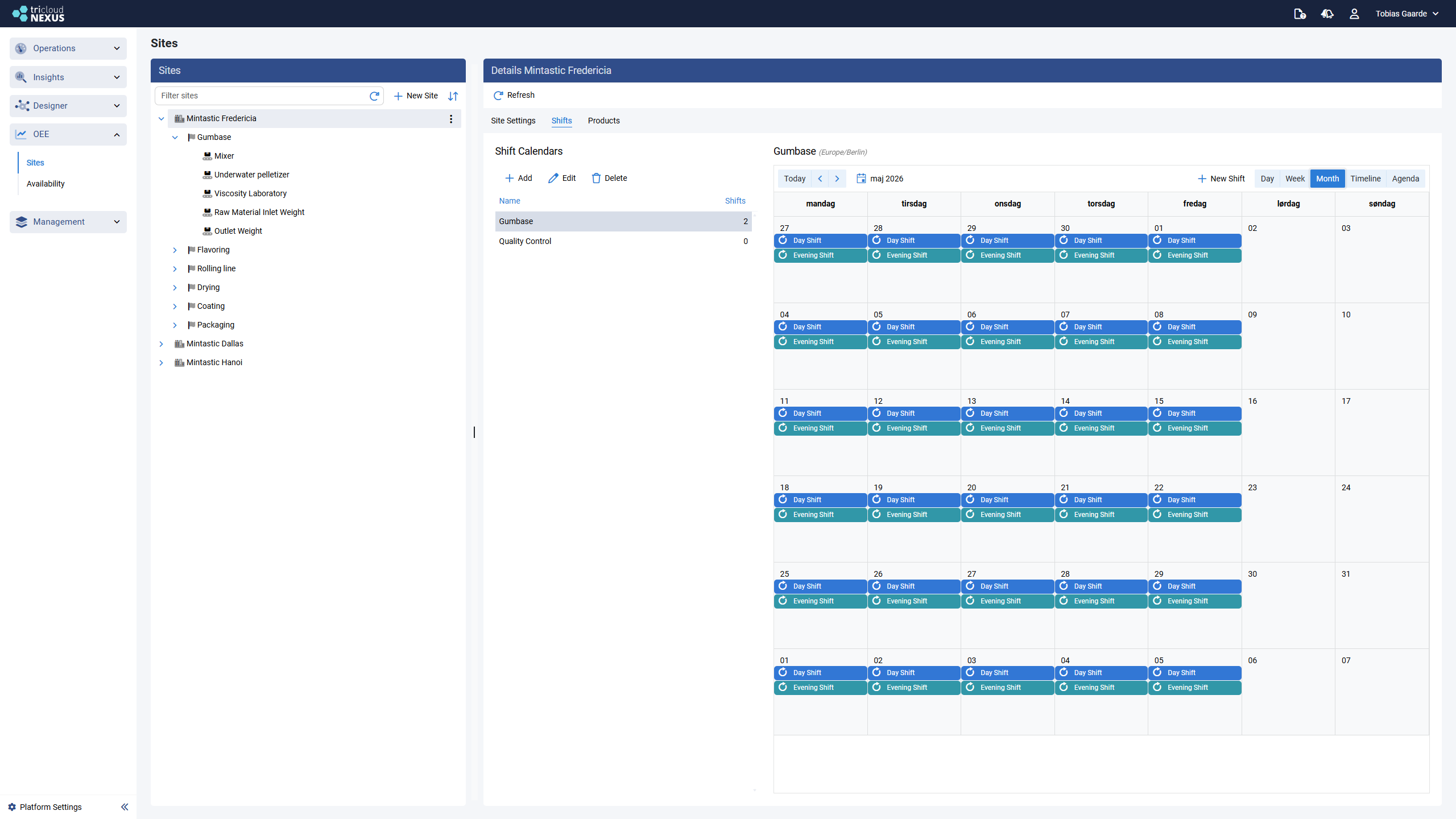
* **Shift scheduler** (right) — a scheduler that visualizes the selected calendar’s shifts in Day / Week / Month / Timeline / Agenda views, evaluated in the Site’s time zone.

<figure><img src="https://570593659-files.gitbook.io/~/files/v0/b/gitbook-x-prod.appspot.com/o/spaces%2FYMGRODsc2QD3N3wmfwTl%2Fuploads%2Fgit-blob-69ea85098f83607fed9ead243292ad19d4141da6%2Foee-site-shifts-week.png?alt=media" alt=""><figcaption><p>Site Shifts — Shift Calendars list on the left, scheduler showing the selected calendar on the right (Week view, Site time zone shown next to the calendar name)</p></figcaption></figure>

***

## Manage Shift Calendars

Use the toolbar above the calendars grid:

| Action     | What it does                                                                                                          |
| ---------- | --------------------------------------------------------------------------------------------------------------------- |
| **Add**    | Opens the Calendar dialog to create a new calendar (Name + initial empty shift list).                                 |
| **Edit**   | Renames the selected calendar. Does not affect existing shifts.                                                       |
| **Delete** | Removes the calendar and all its shifts. The platform prevents deletion if any equipment is currently assigned to it. |

<figure><img src="https://570593659-files.gitbook.io/~/files/v0/b/gitbook-x-prod.appspot.com/o/spaces%2FYMGRODsc2QD3N3wmfwTl%2Fuploads%2Fgit-blob-9f19b67fbf0afa687d26659d96dd131db62a4d58%2Foee-new-shift-calendar-dialog.png?alt=media" alt=""><figcaption><p>New Shift Calendar dialog — enter a name for the calendar; shifts are added afterwards from the scheduler</p></figcaption></figure>

Selecting a calendar in the grid loads its shifts into the scheduler on the right.

***

## Manage Shifts

Each calendar holds many **Shift events**. Add or edit them from the scheduler:

1. Select the calendar.
2. To add: click `New Shift` button, or click an empty slot in the scheduler.
3. To edit: double-click an existing event.

The Shift dialog covers:

* **Shift name** — the display name (e.g. `Day Shift`, `Night Shift`). The dialog suggests existing titles already used in this Site so different calendars can share a title (useful for reporting consistency).
* **Start / End** — local times in the Site’s time zone.
* **Recurrence** — Never / Daily / Weekly / Monthly / Yearly with the standard recurrence options (interval, weekdays, end never / after N occurrences / on date). The same editor is used for [Planned Stops](/management-portal/oee/equipment/planned-stops.md).

<figure><img src="https://570593659-files.gitbook.io/~/files/v0/b/gitbook-x-prod.appspot.com/o/spaces%2FYMGRODsc2QD3N3wmfwTl%2Fuploads%2Fgit-blob-2118ea0a5c00c08a2766715f2bd9606da0309732%2Foee-edit-shift-dialog.png?alt=media" alt=""><figcaption><p>Edit Shift — name, start/end, Repeat tabs (Never/Daily/Weekly/Monthly/Yearly), per-weekday selector, and End mode (Never / After N occurrences / On date)</p></figcaption></figure>

When editing a recurring shift, you’re asked whether to apply the change to **this occurrence** or **the entire series** — exception dates are tracked per occurrence so a one-off change doesn’t alter the rest of the series.

<figure><img src="https://570593659-files.gitbook.io/~/files/v0/b/gitbook-x-prod.appspot.com/o/spaces%2FYMGRODsc2QD3N3wmfwTl%2Fuploads%2Fgit-blob-a127d7c07407aa1b1b38566960291c863ae06086%2Foee-edit-recurring-appointment.png?alt=media" alt=""><figcaption><p>Edit Recurring Appointment — pick "Edit current occurrence" to change a single date or "Edit the series" to change every future instance</p></figcaption></figure>

***

## Shifts are grouped by name

A **shift** in everyday language — `Day Shift`, `Night Shift`, `Weekend Shift` — is identified by its **name**, not by a single event in the scheduler. A calendar can hold many scheduler events that share the same name (for example, separate Monday, Tuesday and Wednesday entries that are all `Day Shift`), and reporting treats them as a single shift.

What this means in practice:

* When you add a new event, the **Shift name** field suggests names already in use on the Site. Pick an existing name to add another occurrence of the same shift; type a new name to create a new shift.
* The **Shifts** column on the Shift Calendars grid counts **distinct names**, not events. A calendar with 5 weekly `Day Shift` events plus 5 weekly `Night Shift` events shows **2** in that column.
* Different calendars can share names too — `Day Shift` on the `Production` calendar and `Day Shift` on the `Office` calendar will report consistently against each other if you keep the names aligned.

The takeaway: think of a name as the shift, and the scheduler events as the times that shift runs.

***

## How the scheduler views differ

| View         | Best for                                                                          |
| ------------ | --------------------------------------------------------------------------------- |
| **Day**      | Verifying handovers between shifts on a single day                                |
| **Week**     | The default for most calendars — see all shifts at a glance                       |
| **Month**    | Spot weeks where coverage differs (holidays, planned overtime)                    |
| **Timeline** | Compare multiple shifts across a long horizon                                     |
| **Agenda**   | Flat list of upcoming shift instances — useful for verifying recurrence end dates |

<figure><img src="https://570593659-files.gitbook.io/~/files/v0/b/gitbook-x-prod.appspot.com/o/spaces%2FYMGRODsc2QD3N3wmfwTl%2Fuploads%2Fgit-blob-39526f57ce4e8cc4898cca6bd237a3c899a09bd9%2Foee-site-shifts-month.png?alt=media" alt=""><figcaption><p>Month view — full calendar month with every shift coloured by name, useful for spotting gaps or overlaps in coverage</p></figcaption></figure>

<figure><img src="https://570593659-files.gitbook.io/~/files/v0/b/gitbook-x-prod.appspot.com/o/spaces%2FYMGRODsc2QD3N3wmfwTl%2Fuploads%2Fgit-blob-8077edd543f5e867759b893f7c0eaa131eba2108%2Foee-site-shifts-agenda.png?alt=media" alt=""><figcaption><p>Agenda view — flat chronological list of upcoming shift instances; "Show Empty Days" toggles whether days with no events are listed</p></figcaption></figure>

The scheduler always renders in the **Site’s time zone**, regardless of the user’s browser zone. This is intentional: if you’re configuring a plant in Singapore from an office in Copenhagen, the times you see match what the plant actually experiences.

***

## How shifts are used downstream

* **Equipment** under the Site assigns one of these calendars on its [Shift Assignment](/management-portal/oee/equipment/shift-assignment.md) tab. The assigned calendar is denormalized onto every OEE fact the engine writes for that equipment.
* The [Planned Stops](/management-portal/oee/equipment/planned-stops.md) scheduler on each equipment can overlay the assigned shifts — useful for verifying that a planned stop falls inside a shift.
* **In dashboards and ADX queries**, Availability is typically computed as `Run Time ÷ (Scheduled Time − Planned Stops)` where "Scheduled Time" comes from the assigned shift. Without a shift assigned, queries either show OEE for all equipment time or skip the shift filter — the choice belongs to the query author.

{% hint style="info" %}
Assigning a shift calendar is **optional** for the engine to produce OEE — it’s mainly a tool for slicing results by shift in reporting. Equipment that runs without a fixed schedule (e.g. a buffer or a storage tank) can be left unassigned, or assigned to a 24/7 `Continuous` calendar if you still want shift metadata stamped onto its facts for consistency.
{% endhint %}