> For the complete documentation index, see [llms.txt](https://docs.tricloudnexus.io/llms.txt). Markdown versions of documentation pages are available by appending `.md` to page URLs; this page is available as [Markdown](https://docs.tricloudnexus.io/management-portal/oee/sites/site-products.md).

# Site Products

Manage product lists and individual products with ideal cycle times. Equipment uses these to calculate Performance.

The **Products** tab on a Site holds the master data Performance calculations need: which products this Site can produce, and how long each one *ideally* takes per unit. Equipment under the Site references one **Product List** (Product Group) at a time and uses each product’s **Ideal Cycle Time** as the speed baseline for Performance.

The tab is a two-pane layout:

* **Product Lists** (left) — a small grid of product groups (e.g. `Accessory Bags`, `Spare Parts`) with the count of items in each.
* **Products** (right) — the products inside the selected list, with toolbar actions to add, edit, delete, **import** from Excel, **export** to Excel, and download an empty **template**.

<figure><img src="https://570593659-files.gitbook.io/~/files/v0/b/gitbook-x-prod.appspot.com/o/spaces%2FYMGRODsc2QD3N3wmfwTl%2Fuploads%2Fgit-blob-a067bd05efa39c5c2ee9ed906a5876c0d8b4762f%2Foee-site-products-tab.png?alt=media" alt=""><figcaption><p>Site Products — Product Lists on the left, Products of the selected list on the right with Import / Export / Download template / Refresh in the toolbar</p></figcaption></figure>

***

## Product Lists

Use the toolbar above the Product Lists grid:

| Action       | What it does                                                                                                                                          |
| ------------ | ----------------------------------------------------------------------------------------------------------------------------------------------------- |
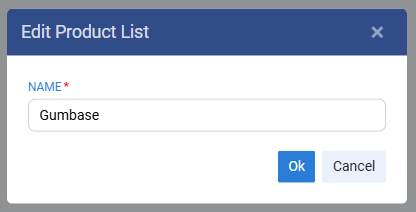
| **New list** | Creates a new product group. Required: Name.                                                                                                          |
| **Edit**     | Renames the selected list.                                                                                                                            |
| **Delete**   | Removes the list and all its products. **Blocked** if any equipment under the Site has the list assigned — unassign it first on Equipment → Products. |

<figure><img src="https://570593659-files.gitbook.io/~/files/v0/b/gitbook-x-prod.appspot.com/o/spaces%2FYMGRODsc2QD3N3wmfwTl%2Fuploads%2Fgit-blob-83cdfda66c337fa188ada74dab5b08b427a16646%2Foee-edit-product-list-dialog.png?alt=media" alt=""><figcaption><p>Edit Product List dialog — enter a name for the list; products are managed after saving</p></figcaption></figure>

Selecting a list loads its products into the right-hand grid.

***

## Products

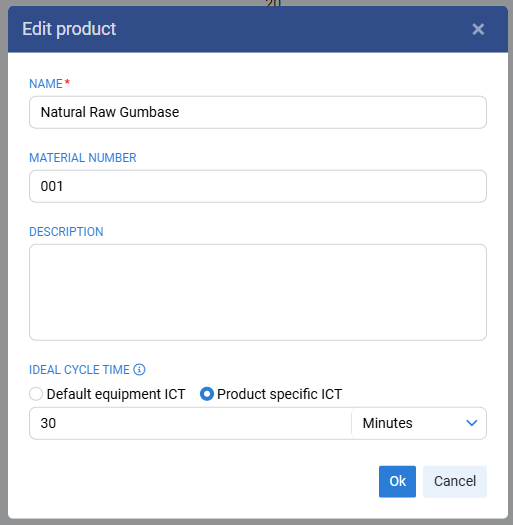
A Product captures the minimum information OEE needs to score speed:

| Field                | Required | Notes                                                                                                                                                                                                         |
| -------------------- | -------- | ------------------------------------------------------------------------------------------------------------------------------------------------------------------------------------------------------------- |
| **Name**             | Yes      | Display name.                                                                                                                                                                                                 |
| **Material Number**  | Yes      | Stable code matching what the equipment’s Product Id tag emits (e.g. `#0004`). The OEE engine matches the live tag value to a product by this code.                                                           |
| **Description**      | No       | Free-text.                                                                                                                                                                                                    |
| **Ideal Cycle Time** | Yes      | The fastest time per unit for this product under ideal conditions. Used as the speed reference for Performance. Set to the special value **"Default equipment ICT"** to fall back to the equipment's default. |
| **Unit of Measure**  | Yes      | Time unit for Ideal Cycle Time (e.g. seconds, minutes).                                                                                                                                                       |

The grid is server-paged at 50 rows; the search box filters by any visible column.

<figure><img src="https://570593659-files.gitbook.io/~/files/v0/b/gitbook-x-prod.appspot.com/o/spaces%2FYMGRODsc2QD3N3wmfwTl%2Fuploads%2Fgit-blob-bac286dd24e4bee0b20b59e4077144fb00351ccb%2Foee-add-product-dialog.png?alt=media" alt=""><figcaption><p>Add product — Name, Material Number, Description, and Ideal Cycle Time as a radio between "Default equipment ICT" (fall back to the equipment default) and "Product specific ICT" (set a value + unit just for this product)</p></figcaption></figure>

{% hint style="info" %}
Products that should run at the equipment’s default speed don’t need a per-product Ideal Cycle Time — leave the radio on **Default equipment ICT** and configure the default once on the Equipment’s [Equipment Products](/management-portal/oee/equipment/equipment-products.md) tab.
{% endhint %}

***

## Import from Excel

Most plants maintain their product list in an existing system or spreadsheet. The Import action loads products in bulk from an Excel file.

1. Select the destination Product List in the left grid.
2. In the Products toolbar, choose **Import**.
3. Upload an `.xlsx` or `.xls` file (max 12 MB).
4. Optionally toggle **Replace existing**:
   * **Off** (default) — appends new products to the list, keeping existing entries.
   * **On** — clears the list first, then loads the file. Use with care.
5. Choose **Start import**.

<figure><img src="https://570593659-files.gitbook.io/~/files/v0/b/gitbook-x-prod.appspot.com/o/spaces%2FYMGRODsc2QD3N3wmfwTl%2Fuploads%2Fgit-blob-0ab5f8ff85a0e03f95c527e6a268d128806fa04d%2Foee-import-products-dialog.png?alt=media" alt=""><figcaption><p>Import products — Browse for an .xlsx / .xls file (≤12 MB), toggle Replace existing if you want a clean replace, then Start import</p></figcaption></figure>

The import runs as a background job. Progress (Pending / Running / Completed / Failed) is shown next to the Product List in the left grid. The grid auto-refreshes when the job finishes.

### File format

The **Download template** button on the Products toolbar is the official source — it gives you the exact column layout the importer expects, kept in sync with the platform release.

For convenience, a snapshot of the template is also available here:

[Products import template (.xlsx)](https://github.com/triclouddk/tcnexus-iotplatform-docs/tree/main/.gitbook/assets/ProductsTemplate.xlsx)

The template contains the column headers the importer expects: Name, Material Number, Description, Ideal Cycle Time, and Unit of Measure. Rows below the header are imported as new products. If you’re scripting against the importer, always validate against the latest in-app **Download template** rather than this attached copy.

{% hint style="warning" %}
Only `.xlsx` and `.xls` are accepted — other extensions (including `.csv`) are rejected at upload time. Files larger than **12 MB** are rejected as well; If your file are bigger then this, split it into several uploads. We support and have testet uploads with 100.000 products in one file. Be aware that the import job takes longer time (as a baground job) the more products you import in one upload.
{% endhint %}

***

## Export

The **Export** button downloads the current Product List to an Excel file using the same column layout as the template. This is useful for:

* Backing up the list before a bulk Replace-existing import.
* Editing many products at once in Excel and re-importing.
* Sharing the master data with another system.

***

## How products are used downstream

* Each Equipment selects exactly one Product List on its [Equipment Products](/management-portal/oee/equipment/equipment-products.md) tab.
* The Equipment’s Tag Mapping carries a **Current Product Id** tag (see [Product & Order](/management-portal/oee/equipment/tag-mapping/product-and-order.md)). The OEE engine matches the tag’s value to a product by Material Number and uses that product’s Ideal Cycle Time for Performance until the tag value changes.
* If the live tag emits a Material Number that doesn’t exist in the assigned list, Performance falls back to the equipment’s default Ideal Cycle Time.