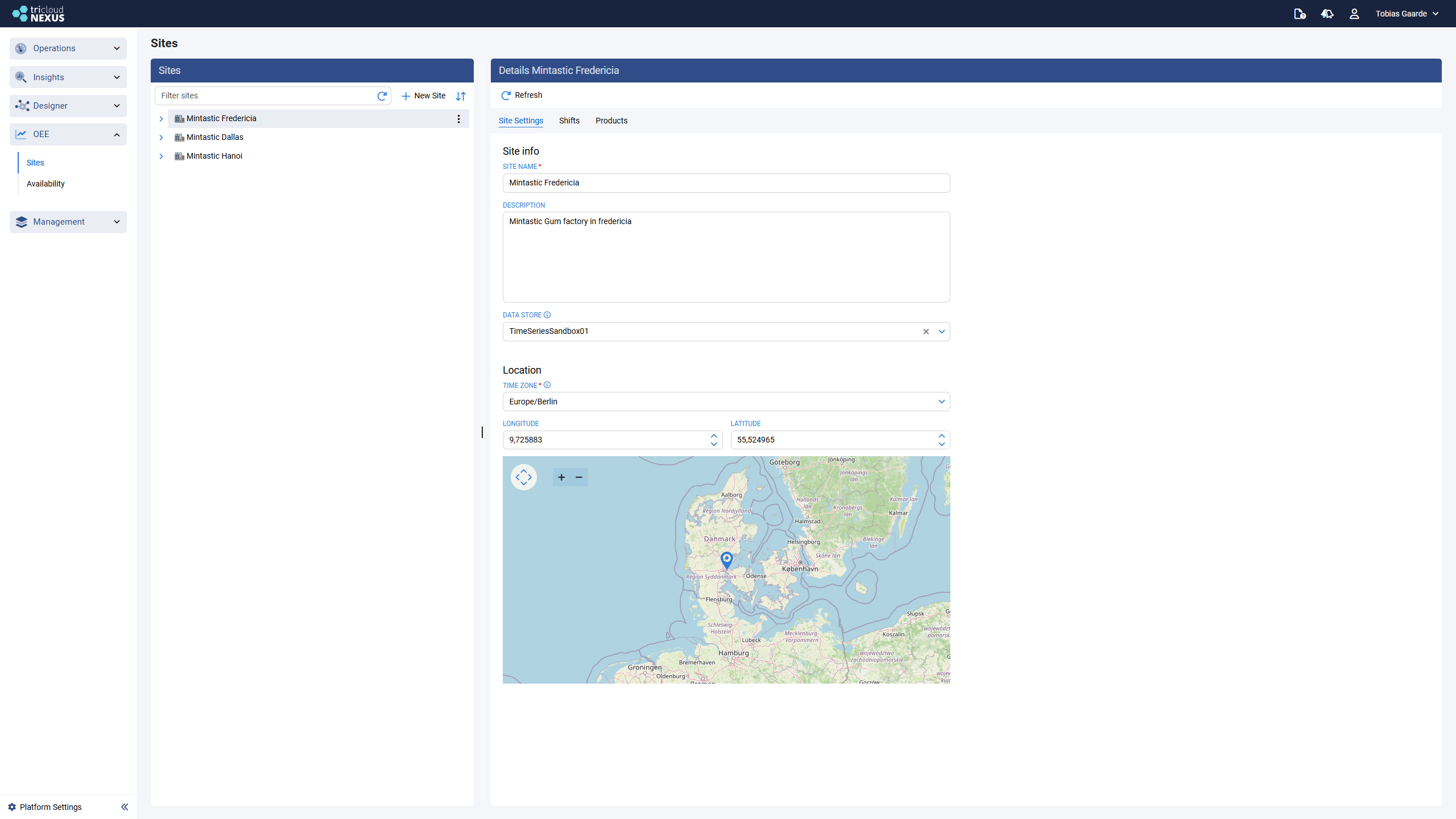
Sites
Emulate the real world with Site / Area / Equipment structure and per-Site configuration (location, time zone, shifts, products).
The Sites page (OEE → Sites) is where you build and maintain the OEE site structure. The left-hand pane is a tree of every Site, Area, and Equipment in your installation; the right-hand pane is a tabbed editor whose contents change depending on which node is selected.

What lives here
The structure itself — Sites, Areas under each Site, Equipment under each Area. See Site Structure for how to create and reorganize nodes.
Site-level configuration — three tabs that apply to a Site as a whole:
Site Settings — name, description, OEE data store, time zone, location on a map.
Site Shifts — shift calendars that equipment under this Site can be assigned to.
Site Products — product lists (groups + products + ideal cycle times) used by equipment under this Site.
Area configuration — see Areas. Areas are pure containers and only have a name and description.
Equipment configuration — the seven tabs that turn a piece of equipment into a measured OEE source. Documented under Equipment.
Working with the tree
The tree view on the left in the OEE area has a few OEE-specific rules:
Filter sites — the search box at the top of the tree filters by Site name. Areas and Equipment are not filtered directly; they appear under any Site that matches.
Refresh — the refresh arrow re-loads the tree from the server, useful when other users have changed the structure.
New Site — opens a dialog to create a Site. With the same inputs contained inside Site Settings. It pre-selects the default OEE data store if one exists.
Reorder mode — the lock/arrows toggle next to New Site turns on drag-and-drop functionality (reordering). While reorder mode is on, the tree icon shows a lock so you remember to switch it off after reorganizing. See the constraints in Site Structure.
Right-click / kebab menu — every node has a kebab (
⋮) button on hover and a right-click context menu. The menu items depend on the node type:Site → Add area / Rename / Delete
Area → Add Equipment / Rename / Delete
Equipment → Rename / Delete

You cannot delete a node that has enabled Equipment under it. Disable OEE on the Equipment first (Equipment tab → OEE Enabled off, then Save). Attempting to delete shows an error listing the enabled equipment that’s blocking the operation.
Where Sites differ from the rest of Nexus
If you’ve worked with Asset Hierarchies in Designer, the OEE Sites tree will look familiar — but the two are independent trees for two different concerns:
Purpose
Define how data is collected from devices (tags, connectors, ingestion)
Define how OEE is calculated (state, shifts, stops, products)
Node types
Hierarchy → Areas → Assets
Site → Area → Equipment
Time zone
Per hierarchy version
Per Site (used for shift evaluation)
Data store
Per hierarchy
Per Site (must have the OEE purpose)
Most installations end up with one OEE Site per physical plant and a separate Asset Hierarchy that feeds tags into it. The two trees don’t need to mirror each other.
Last updated
Was this helpful?