> For the complete documentation index, see [llms.txt](https://docs.tricloudnexus.io/llms.txt). Markdown versions of documentation pages are available by appending `.md` to page URLs; this page is available as [Markdown](https://docs.tricloudnexus.io/management-portal/oee/equipment/stop-causes-and-error-codes.md).

# Stop Causes & Error Codes

Define business-friendly Stop Causes and map vendor error codes onto them so unplanned downtime is reported in language operators understand.

The **Stop Causes** tab on an Equipment has two sections that work together:

1. **Stop Causes** — named, categorized stop reasons that operators and reports actually see.
2. **Error Code Mapping** — a translation table from vendor error codes (the numbers PLCs emit) to those Stop Causes.

The table is empty until you add at least one Stop Cause — Error Code Mapping cannot reference what doesn’t exist yet.

<figure><img src="https://570593659-files.gitbook.io/~/files/v0/b/gitbook-x-prod.appspot.com/o/spaces%2FYMGRODsc2QD3N3wmfwTl%2Fuploads%2Fgit-blob-df3e4b2541cccb93aff1066c1bc991ac7ba3ec3c%2Foee-stop-causes-tab.png?alt=media" alt=""><figcaption><p>Stop Causes tab — Stop Causes grid above, No Error Value field, and the Error Code Mapping grid below</p></figcaption></figure>

***

## Stop Causes

A **Stop Cause** is a meaningful explanation of why the equipment stopped — `"Weber X is empty"`, `"Pack robot fault"`, `"Material jam"` — paired with an Availability Category that classifies the time it represents.

### Add or edit a Stop Cause

1. In the Stop Causes grid, choose **Add** (or **Edit** for an existing row, or double-click).
2. Fill in the dialog:

<figure><img src="https://570593659-files.gitbook.io/~/files/v0/b/gitbook-x-prod.appspot.com/o/spaces%2FYMGRODsc2QD3N3wmfwTl%2Fuploads%2Fgit-blob-09b34021c5a5ce5addab22fb4d98e4cfc9d8de9f%2Foee-new-stop-cause-dialog.png?alt=media" alt=""><figcaption><p>New Stop Cause dialog — Stop Cause name, Description, Availability Category</p></figcaption></figure>

| Field                     | Required | Notes                                                                                                                                                                     |
| ------------------------- | -------- | ------------------------------------------------------------------------------------------------------------------------------------------------------------------------- |
| **Stop Cause**            | Yes      | The display name — should be operator-readable, not a vendor code.                                                                                                        |
| **Description**           | No       | Free-text. Useful for first-line operator instructions ("check infeed sensor S3").                                                                                        |
| **Availability Category** | Yes      | Most Stop Causes are `Unplanned Stop` (the default). Use a `Planned Stop` category for known categories of stop you don’t schedule individually (e.g. shift-end cleanup). |

3. Choose **Ok**.

The Stop Cause is now available in Error Code Mapping and in any reporting that surfaces stop reasons.

### Delete a Stop Cause

Selecting a Stop Cause and choosing **Delete** removes it. The platform does not allow deleting a Stop Cause that is currently referenced by an Error Code Mapping row — clear those mappings first (or re-target them at a different Stop Cause).

***

## No Error Value

Above the Error Code Mapping grid is a single field:

| Field              | Required | Notes                                                                                                                                                                                                                 |
| ------------------ | -------- | --------------------------------------------------------------------------------------------------------------------------------------------------------------------------------------------------------------------- |
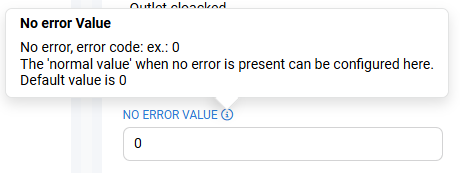
| **No error Value** | No       | The value emitted by the equipment’s Error Code tag when **no error is currently active**. Typical example: `0`. The OEE engine treats this value as "no error" and does not attribute time to any Stop Cause for it. |

<figure><img src="https://570593659-files.gitbook.io/~/files/v0/b/gitbook-x-prod.appspot.com/o/spaces%2FYMGRODsc2QD3N3wmfwTl%2Fuploads%2Fgit-blob-a80c969163d4d9d4493dad143f5375bfca99e169%2Foee-no-error-value-tooltip.png?alt=media" alt=""><figcaption><p>No Error Value tooltip — explains that the default value is 0 and the field configures what the tag emits when no error is active</p></figcaption></figure>

If your equipment has no such value (every emission represents an actual error), leave the field empty.

***

## Error Code Mapping

The **Error Code Mapping** grid translates raw vendor error codes — the numbers coming off the PLC via the Error Code tag wired in [State & Error Codes](/management-portal/oee/equipment/tag-mapping/state-and-error-codes.md) — into Stop Causes.

### Add or edit a mapping

1. With at least one Stop Cause defined, choose **Add** in the Error Code Mapping grid.
2. Fill in the dialog:

<figure><img src="https://570593659-files.gitbook.io/~/files/v0/b/gitbook-x-prod.appspot.com/o/spaces%2FYMGRODsc2QD3N3wmfwTl%2Fuploads%2Fgit-blob-605273cb815436ba291c7c7b7309e91cc504a0f1%2Foee-new-error-code-mapping-dialog.png?alt=media" alt=""><figcaption><p>New error code mapping — Error Codes (range syntax), Vendor Description, Stop Cause</p></figcaption></figure>

| Field                  | Required | Notes                                                                                                                                                                                    |
| ---------------------- | -------- | ---------------------------------------------------------------------------------------------------------------------------------------------------------------------------------------- |
| **Error Codes**        | Yes      | The vendor code or range of codes. Use a single number (`101`) or a range (`101..110`) to map many codes to the same Stop Cause in one row. Multiple ranges can be combined with commas. |
| **Vendor Description** | No       | Free-text — typically the vendor’s own error label (`"Weber is empty"`). Shown alongside the friendly Stop Cause in operator views.                                                      |
| **Stop Cause**         | Yes      | One of the Stop Causes you defined above.                                                                                                                                                |

3. Choose **Ok**. The row appears in the grid.

### Range syntax

| Pattern              | Matches                                            |
| -------------------- | -------------------------------------------------- |
| `101`                | Exactly the code `101`.                            |
| `101..110`           | Every integer from `101` through `110`, inclusive. |
| `101, 105, 200..210` | Multiple ranges and singletons combined.           |

Ranges should not overlap — if two rows match the same code, the engine resolves to the first match it finds, which is unpredictable.

### Delete a mapping

Select the row and choose **Delete**. Stop Causes are not affected; only the translation row is removed.

***

## How Stop Causes drive the score

When the Equipment Run State indicates the equipment is not running and the Error Code tag emits a value:

1. The engine matches the value against the Error Code Mapping rows.
2. If a row matches, the time is attributed to that Stop Cause.
3. The Stop Cause’s Availability Category determines whether the time counts against Availability:
   * **Unplanned Stop** — counts against Availability (Availability loss).
   * **Planned Stop** — excluded from the calculation.
   * Custom categories — behavior follows the category type.
4. If no row matches and the value isn’t the **No error Value**, the OEE engine falls through to a built-in default: **the time is treated as Running**. This is the platform’s behaviour and not a per-Site or per-Equipment setting. Don’t rely on the fall-through — add a mapping row for every code you want classified as a stop, so the attribution is deliberate.

***

## Validation

| Condition                                                | Behavior                                                                                                |
| -------------------------------------------------------- | ------------------------------------------------------------------------------------------------------- |
| Adding an Error Code Mapping with no Stop Causes defined | The Add button is disabled; the grid shows "Please add a stop cause before adding error code mapping…". |
| Range syntax invalid                                     | The dialog does not allow saving and surfaces a validation message.                                     |
| Stop Cause referenced by a mapping is deleted            | Deletion is blocked at the platform level.                                                              |

***

## Related

* [State & Error Codes](/management-portal/oee/equipment/tag-mapping/state-and-error-codes.md) — wires the Error Code tag the Mapping interprets.
* [Availability Categories](/management-portal/oee/availability-categories.md) — defines the categories the Stop Cause dialog draws from.
* [States Mapping](/management-portal/oee/equipment/states-mapping.md) — translates Equipment Run State values; complements Stop Causes by classifying *running vs. not running* before Error Codes attribute the *why*.