> For the complete documentation index, see [llms.txt](https://docs.tricloudnexus.io/llms.txt). Markdown versions of documentation pages are available by appending `.md` to page URLs; this page is available as [Markdown](https://docs.tricloudnexus.io/management-portal/oee/equipment/planned-stops.md).

# Planned Stops

Schedule recurring downtime per equipment so it subtracts from Availability instead of counting against it.

A **Planned Stop** is a recurring window during which the equipment is intentionally not running — changeovers, sanitation, scheduled maintenance, breaks, etc. Planned Stops are configured per equipment and **subtract from scheduled time** before Availability is calculated, so they don’t count against the score.

The Planned Stops tab is a scheduler with five views (Day / Week / Month / Timeline / Agenda), the same recurrence engine as [Site Shifts](/management-portal/oee/sites/site-shifts.md), and an optional overlay of the assigned shift calendar so you can verify a stop falls inside a shift.

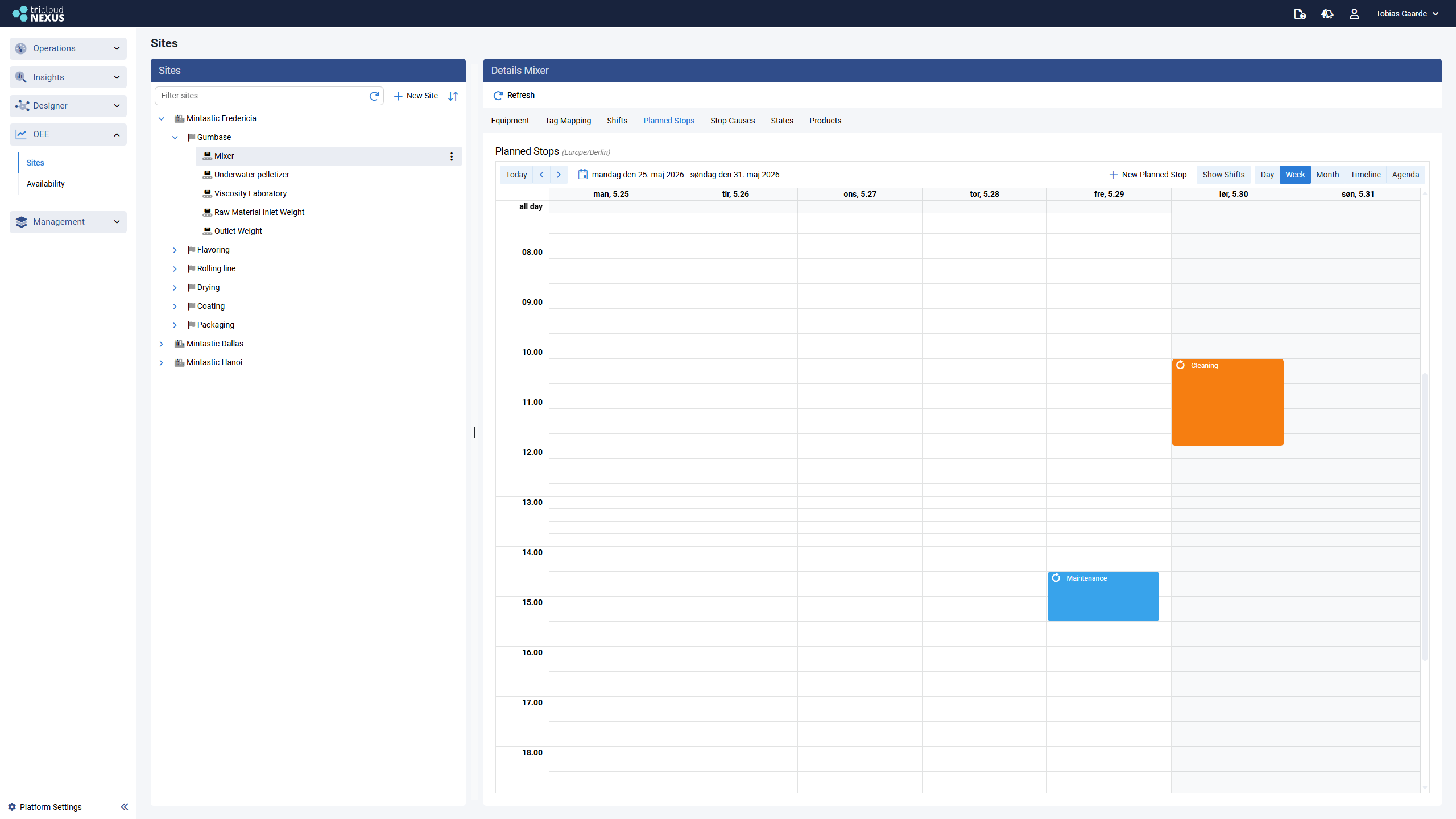
<figure><img src="https://570593659-files.gitbook.io/~/files/v0/b/gitbook-x-prod.appspot.com/o/spaces%2FYMGRODsc2QD3N3wmfwTl%2Fuploads%2Fgit-blob-b06f5a41bfccaf1cb3778385127c034e949249a6%2Foee-planned-stops-agenda.png?alt=media" alt=""><figcaption><p>Planned Stops — Week view showing recurring planned stops (Cleaning and Maintenance) on the scheduler</p></figcaption></figure>

***

## Toolbar

| Control                                    | What it does                                                                                                                                                                                  |
| ------------------------------------------ | --------------------------------------------------------------------------------------------------------------------------------------------------------------------------------------------- |
| **New Planned Stop**                       | Opens the Set Planned Stop dialog with default values (today, 09:00 → 10:00, default Planned Stop category).                                                                                  |
| **Show Shifts**                            | Overlays the equipment’s assigned shift calendar onto the scheduler — shifts are read-only here; switch to the Site’s [Shifts](/management-portal/oee/sites/site-shifts.md) tab to edit them. |
| **Show Empty Days** *(Agenda view only)*   | Toggles whether days with no events are listed as `no events` placeholders.                                                                                                                   |
| **Today / ◀ / ▶**                          | Standard scheduler navigation.                                                                                                                                                                |
| **Day / Week / Month / Timeline / Agenda** | View switcher. The selected view is remembered per browser session.                                                                                                                           |

The scheduler always renders in the **Site’s time zone** (shown next to the title).

***

## Add a Planned Stop

1. Choose **New Planned Stop**, or drag-select a time range in any view.
2. The Set Planned Stop dialog opens.

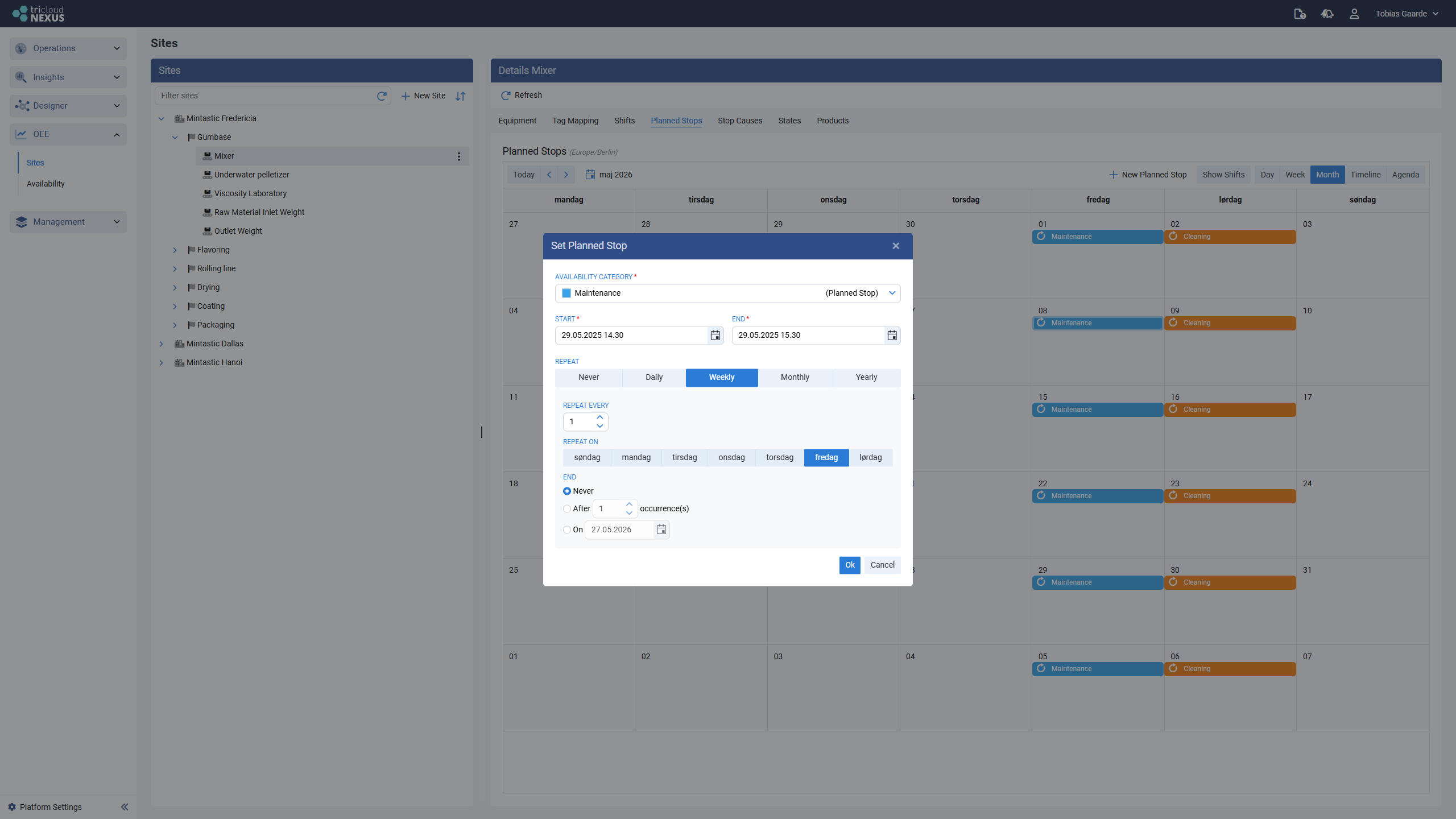
<figure><img src="https://570593659-files.gitbook.io/~/files/v0/b/gitbook-x-prod.appspot.com/o/spaces%2FYMGRODsc2QD3N3wmfwTl%2Fuploads%2Fgit-blob-5393780844a6e1cc1319e67471f27d687970e703%2Foee-set-planned-stop-dialog.png?alt=media" alt=""><figcaption><p>Set Planned Stop — full dialog with Availability Category, Start/End, Repeat tabs (Never / Daily / Weekly / Monthly / Yearly), and End options (Never / After / On)</p></figcaption></figure>

3. Fill in the fields:

| Field                     | Required       | Notes                                                                                                                                                                                 |
| ------------------------- | -------------- | ------------------------------------------------------------------------------------------------------------------------------------------------------------------------------------- |
| **Availability Category** | Yes            | Drop-down of every Availability Category whose type is `PlannedStop`. The default-flagged Planned Stop category is pre-selected. The category drives the color used in the scheduler. |
| **Start**                 | Yes            | Start date and time in the Site’s time zone.                                                                                                                                          |
| **End**                   | Yes            | End date and time. Must be after Start.                                                                                                                                               |
| **Repeat**                | —              | Tab strip: Never / Daily / Weekly / Monthly / Yearly.                                                                                                                                 |
| **Repeat every**          | When repeating | Interval (e.g. every `1` week).                                                                                                                                                       |
| **Repeat on**             | Weekly only    | Weekday selector — multiple days allowed (e.g. Mon, Tue, Wed).                                                                                                                        |
| **End**                   | When repeating | Series end mode: Never / After N occurrences / On a specific date.                                                                                                                    |

4. Choose **Ok** to save.

The stop appears in the scheduler immediately. Save the Equipment configuration (page-level toolbar) to persist it.

***

## Edit a Planned Stop

Double-click the stop in any view, or drag its edges to resize, or drag its body to move it.

For a recurring stop, the scheduler asks whether the change applies to:

* **This occurrence** — the change is applied to a single date; the rest of the series is unaffected. Internally an occurrence-exception is created plus a one-off stop on the affected date.
* **The entire series** — the change is applied to every occurrence (past and future).

<figure><img src="https://570593659-files.gitbook.io/~/files/v0/b/gitbook-x-prod.appspot.com/o/spaces%2FYMGRODsc2QD3N3wmfwTl%2Fuploads%2Fgit-blob-a127d7c07407aa1b1b38566960291c863ae06086%2Foee-edit-recurring-appointment.png?alt=media" alt=""><figcaption><p>Edit Recurring Appointment — the same dialog used for Site Shifts; pick "Edit current occurrence" to change a single date or "Edit the series" to change every future instance</p></figcaption></figure>

Exception dates are tracked separately so you can re-edit them later or delete them to fall back to the series rule.

***

## Delete a Planned Stop

* **Delete this occurrence** — adds an exception date to the parent series; the series itself remains.
* **Delete the entire series** — removes the parent and every exception derived from it.
* **Delete a one-off stop** — removes it outright.

A confirmation dialog states which mode you’re about to apply.

***

## Show Shifts overlay

When the **Show Shifts** toggle is on, the assigned shift calendar (see [Equipment Shift Assignment](/management-portal/oee/equipment/shift-assignment.md)) is rendered behind the planned stops.

<figure><img src="https://570593659-files.gitbook.io/~/files/v0/b/gitbook-x-prod.appspot.com/o/spaces%2FYMGRODsc2QD3N3wmfwTl%2Fuploads%2Fgit-blob-b099f5ee1439052880d361fe6787c87c3f2ec049%2Foee-shift-scheduler-with-stops.png?alt=media" alt=""><figcaption><p>Scheduler with Show Shifts on — shifts as background blocks, planned stops on top</p></figcaption></figure>

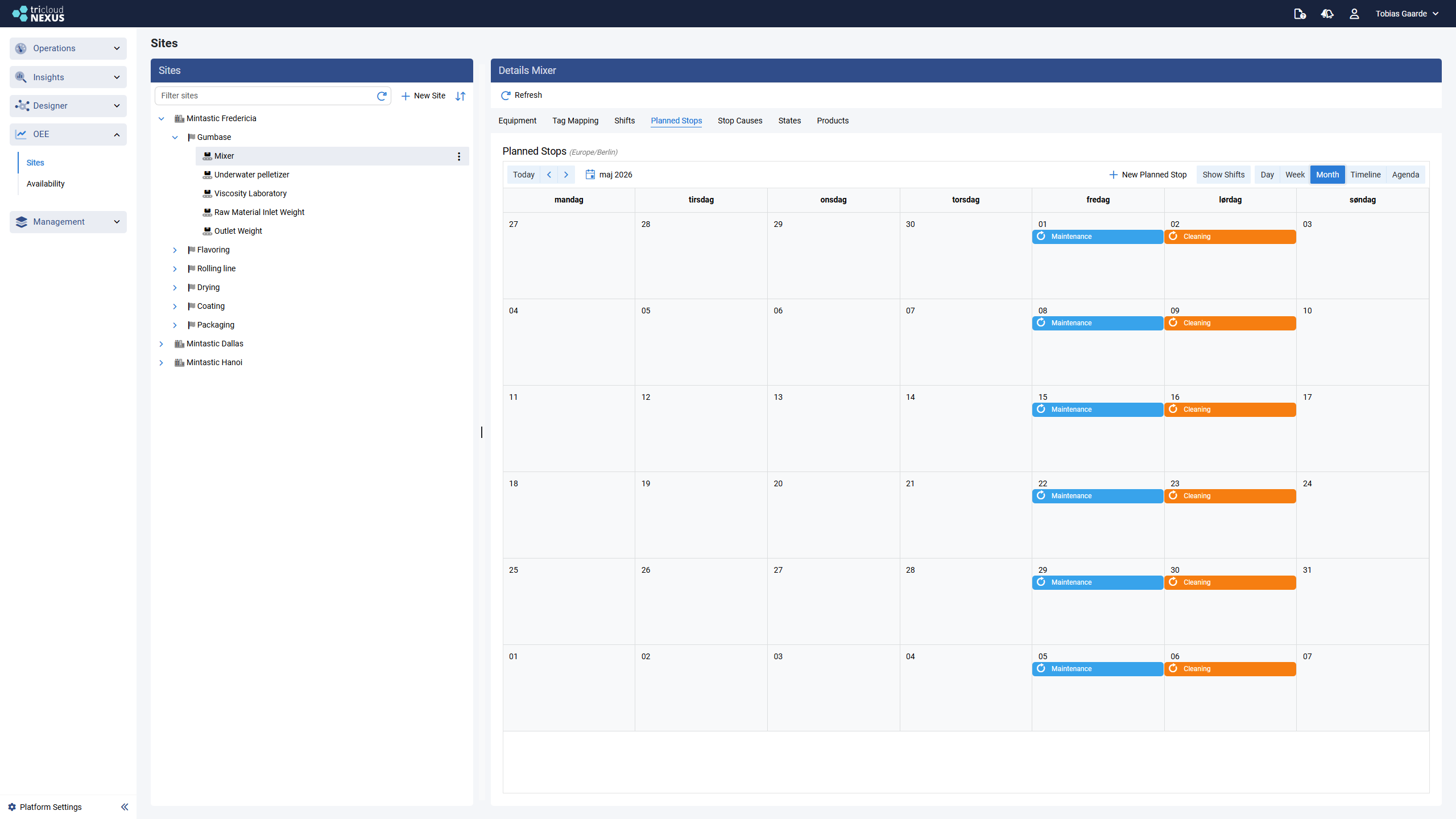
<figure><img src="https://570593659-files.gitbook.io/~/files/v0/b/gitbook-x-prod.appspot.com/o/spaces%2FYMGRODsc2QD3N3wmfwTl%2Fuploads%2Fgit-blob-c37bf2df7a93da209620c1ad306cd51f8eefc3f4%2Foee-planned-stops-month.png?alt=media" alt=""><figcaption><p>Planned Stops — Month view showing recurring Maintenance (Friday) and Cleaning (Saturday) planned stops across the calendar</p></figcaption></figure>

The overlay is read-only here — clicks on a shift do nothing, only planned-stop events can be edited. Use it to verify:

* The stop falls **inside** a shift, otherwise it has no effect (there’s no scheduled time for it to subtract from).
* Two stops on different equipment don’t collide when several lines share a calendar.

***

## How Planned Stops affect Availability

The Availability calculation uses:

> **Net Scheduled Time = Shift Time − Planned Stops**\
> **Availability = Run Time ÷ Net Scheduled Time**

A Planned Stop that overlaps a shift removes that overlap from scheduled time. A Planned Stop *outside* any shift is silently ignored — it’s already non-scheduled.

{% hint style="info" %}
Use Planned Stops for downtime that is **expected and recurring**. Ad-hoc stops that happen during a shift should not be modeled here — they’ll be picked up automatically as Unplanned Stops via the Equipment Run State and the [Stop Causes](/management-portal/oee/equipment/stop-causes-and-error-codes.md) configuration.
{% endhint %}