> For the complete documentation index, see [llms.txt](https://docs.tricloudnexus.io/llms.txt). Markdown versions of documentation pages are available by appending `.md` to page URLs; this page is available as [Markdown](https://docs.tricloudnexus.io/management-portal/oee/availability-categories.md).

# Availability Categories

Global, color-coded labels used by States Mapping and Planned Stops to classify time as productive, planned downtime, or unplanned stop.

An **Availability Category** is a labelled, color-coded bucket that classifies time. Categories are managed under **OEE → Availability** and are **global** — every Site, every Equipment, every State Mapping and every Planned Stop chooses from the same list.

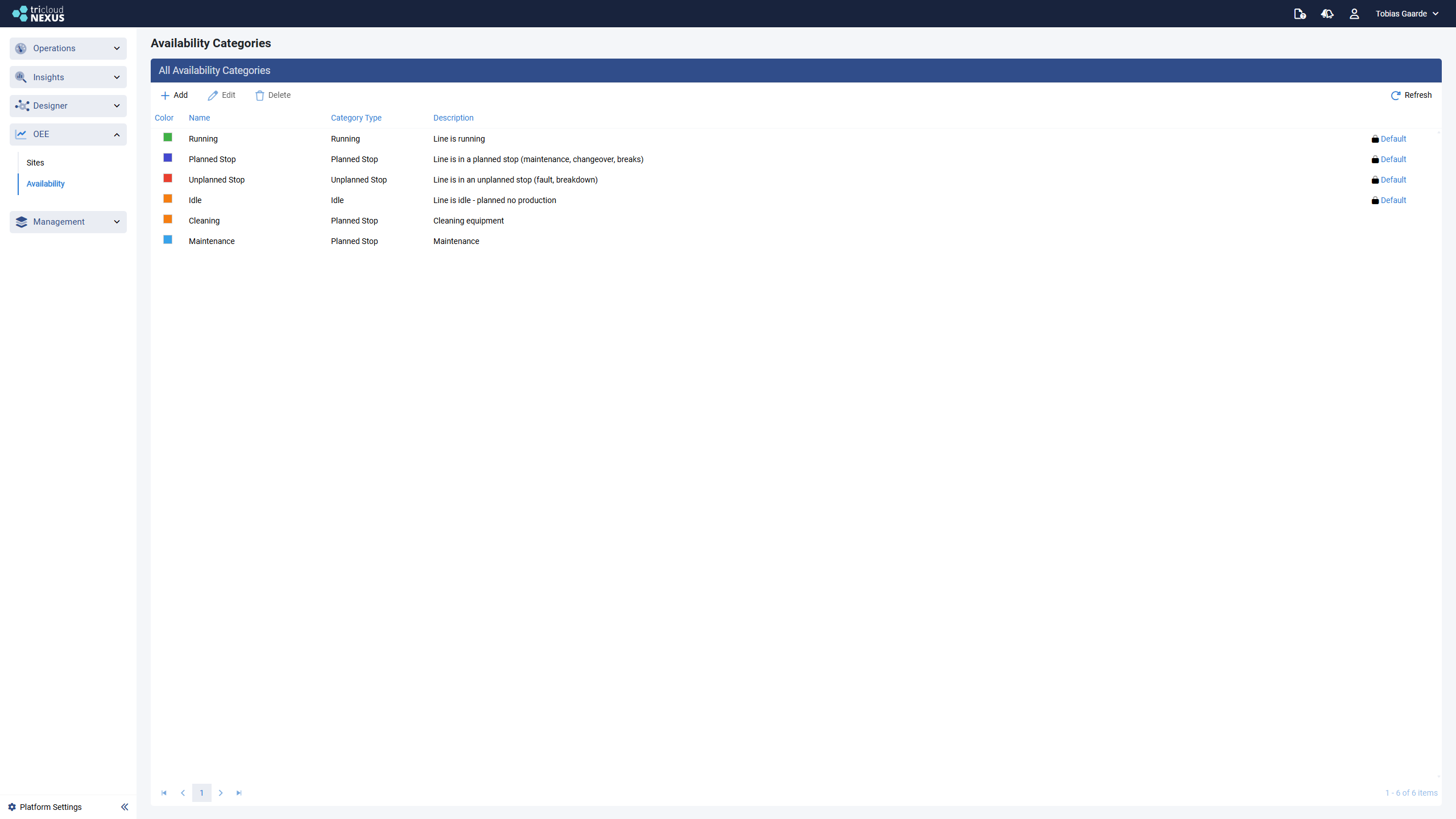
<figure><img src="https://570593659-files.gitbook.io/~/files/v0/b/gitbook-x-prod.appspot.com/o/spaces%2FYMGRODsc2QD3N3wmfwTl%2Fuploads%2Fgit-blob-1854859c3ba76361f0a56d757124b362fb3c9e22%2Foee-availability-categories.png?alt=media" alt=""><figcaption><p>Availability Categories — global list showing Name, Category Type, and Description for each category; default categories are marked with a "Default" badge</p></figcaption></figure>

| Used by                                                                        | Where                                                                             |
| ------------------------------------------------------------------------------ | --------------------------------------------------------------------------------- |
| [States Mapping](/management-portal/oee/equipment/states-mapping.md)           | Maps a raw equipment-state value (`Running`, `Stopped`, `Idle`, …) to a category. |
| [Planned Stops](/management-portal/oee/equipment/planned-stops.md)             | Tags every recurring planned stop with a `PlannedStop`-typed category.            |
| [Stop Causes](/management-portal/oee/equipment/stop-causes-and-error-codes.md) | Classifies each stop reason as Planned, Unplanned, etc.                           |

***

## The Availability Categories page

The page is a single grid with the standard Add / Edit / Delete / Refresh toolbar. Add / Edit / Delete are only visible to users in the **Contributor** or **Administrator** role; all authenticated users can view the list.

| Column            | Notes                                                                                         |
| ----------------- | --------------------------------------------------------------------------------------------- |
| **Color**         | The color used to mark the category wherever it appears (state grids, scheduler, dashboards). |
| **Name**          | Display name; must be unique globally (case-insensitive).                                     |
| **Category Type** | One of the four built-in types — see below.                                                   |
| **Description**   | Free-text.                                                                                    |

***

## Category Types

Every category has exactly one **type**, which controls how the category contributes to the OEE calculation:

| Type               | Meaning                                                                                                                                                             | Effect on Availability                                                                                                                                              |
| ------------------ | ------------------------------------------------------------------------------------------------------------------------------------------------------------------- | ------------------------------------------------------------------------------------------------------------------------------------------------------------------- |
| **Running**        | Equipment is producing units.                                                                                                                                       | Counts as productive time. Increases Availability.                                                                                                                  |
| **Idle**           | Scheduled time when the equipment *should* be producing but isn’t — typical examples: no orders queued, operator pressed stop, line starvation, blocked downstream. | Counts against **Performance**, not Availability. The equipment was scheduled to run and didn’t, so the gap shows up as a speed loss in the score, not as downtime. |
| **Planned Stop**   | Known, scheduled downtime — changeovers, sanitation, maintenance, breaks.                                                                                           | Excluded from scheduled time entirely; does not count against Availability.                                                                                         |
| **Unplanned Stop** | Faults, breakdowns, jams.                                                                                                                                           | Counts as scheduled time but not productive — Availability loss.                                                                                                    |

You can create as many categories of each type as you like — for example, two `Unplanned Stop` categories called `Mechanical Fault` and `Electrical Fault` to color-code different failure modes on dashboards. The score effect is determined by the **type**; the **name** is purely for reporting and color-coding.

{% hint style="info" %}
Pre-seeded default categories (one per type) are created when OEE is first enabled. You can rename and recolor them, but they can't be deleted — so every State Mapping and Planned Stop always has at least one category of each type to choose from.
{% endhint %}

***

## Add a category

1. Choose **Add** in the toolbar.
2. Fill in the dialog:

<figure><img src="https://570593659-files.gitbook.io/~/files/v0/b/gitbook-x-prod.appspot.com/o/spaces%2FYMGRODsc2QD3N3wmfwTl%2Fuploads%2Fgit-blob-280219442dcae0738ceff860e2040522ca9ed5c9%2Foee-edit-availability-category-dialog.png?alt=media" alt=""><figcaption><p>Edit Availability Category dialog — Name, Description, Category Type, and Color picker</p></figcaption></figure>

| Field             | Required | Notes                                                                                                                                                                                                            |
| ----------------- | -------- | ---------------------------------------------------------------------------------------------------------------------------------------------------------------------------------------------------------------- |
| **Name**          | Yes      | Unique globally (case-insensitive). The dialog enforces this — you’ll see "An availability category with this name already exists" if you try to reuse a name.                                                   |
| **Description**   | No       | Free-text.                                                                                                                                                                                                       |
| **Category Type** | Yes      | One of Running / Idle / Planned Stop / Unplanned Stop.                                                                                                                                                           |
| **Color**         | Yes      | Pick from the basic palette or open the gradient picker for a custom hex value. New categories default to a green (`#22b14c`); change it to something distinct so the category is recognizable in the scheduler. |

3. Choose **Save**.

***

## Edit a category

Select the row and choose **Edit**, or double-click. The same dialog opens pre-populated.

* Renaming, recoloring, or changing the description is safe — references update everywhere.
* Changing the **Category Type** is allowed, but do it deliberately — the type controls how time in this category counts toward the OEE score. Time already recorded keeps its original classification; only data collected after the change uses the new type.

***

## Delete a category

Select the row and choose **Delete**. The platform does not allow deleting a category that is currently referenced by a State Mapping or a Planned Stop — re-target those references at a different category first.

***

## Recommended starter set

For a typical packaging or processing line, the following baseline covers most situations:

| Type           | Name             | Color |
| -------------- | ---------------- | ----- |
| Running        | `Running`        | green |
| Unplanned Stop | `Unplanned Stop` | red   |
| Planned Stop   | `Planned Stop`   | blue  |
| Idle           | `Idle`           | grey  |

Add per-failure-mode categories (`Material Jam`, `Mechanical Fault`, `Electrical Fault`, `Sensor Fault`, …) only when you actually plan to color-code them on dashboards. Too many categories quickly become noise.
